




With the release of Appium 2.0, the architecture has been divided into four main components: Appium Core, Appium Drivers, Appium Client and Appium Plugins.
When you write test scripts, they use Appium Drivers to connect to the Appium Server and the target mobile application to run the tests on an automation testing platform using the W3C protocol. This communication happens through API requests and responses, which Appium Drivers process.
What Are Appium Drivers?
Appium Drivers allow connecting the Appium Server with the Appium Client, which is the test script written in different programming languages like Java, Python, JavaScript, etc. The Appium Driver converts the platform-specific actions it receives from Appium Servers, executes them, and returns the results.
Depending on the mobile platform, the required Driver is used to execute the test scripts. This allows simulating user actions, such as tapping, swiping, entering text, etc., on the mobile application and interacting with it. This interaction is performed using the W3C Protocol.
The “Automation Names” are labels given to the different drivers that Appium recognises and knows about. When writing the configuration for automating mobile applications with Appium, we need to provide the “Automation Name” that eventually helps Appium determine which Driver to use for running the automation scripts.
As a prerequisite, we need to install Appium first in order to install the required Appium Driver. Appium can be installed globally using npm by running the following command from the terminal.
npm i -g appium
The following is the list of drivers that are currently provided and maintained by Appium:
| Driver Name | Platform | Mode |
|---|---|---|
| XCUITest | iOS | Native, Hybrid, Web |
| UiAutomator2 | Android | Native, Hybrid, Web |
| Espresso | Android | Native |
| Chromium | macOS, Windows, Linux | Web |
| Gecko | macOS, Windows, Linux, Android | Web |
| Mac2 | macOS | Native |
| Safari | macOS, iOS | Web |
Let’s discuss these drivers briefly, one by one, in detail.
XCUITest Driver
The XCUITest driver is used for automating the applications on iOS, iPadOS and tvOS.
It supports the automation of real iOS devices and simulators using the XCUITest framework by Apple.
Additionally, this Driver requires Xcode and developer tools for automating the iOS applications.
The following command should be run from the terminal to install the XCUITest driver:
appium driver install xcuitest
UiAutomator2 Driver
The UiAutomator2 driver is used for automating the Android native, hybrid and mobile web applications. It supports the automation of Android real devices and Emulators using the UiAutomator framework by Google under the hood.
Additionally, it uses ADB commands and other helper functions from the Android SDK to perform user simulations on Android mobile applications.
The following command should be run from the terminal to install the UiAutomator2 Driver.
appium driver install uiautomator2
Espresso Driver
The Espresso driver is used for automating native Android mobile applications. It utilises the Espresso technology by Google. The Espresso driver package is made up of two parts, the driver part and the server part.
The driver part makes sure that the communication happens between Appium and the Espresso server, while the server part transforms the REST API into low-level Espresso commands.
The following command should be run from the terminal to install the Espresso Driver.
appium driver install espresso
Chromium Driver
The Chromium driver is used for automating the Chromium-based browsers such as Chrome. Under the hood, it uses ChromeDriver to automate interactions with the browsers.
It automatically downloads the required version of chromedriver that is appropriate to the version of the browser under test.
In order to install the Chromium driver, the following command should be run from the terminal.
appium driver install chromium
Gecko Driver
The Gecko driver is used for automating Firefox on different platforms, including Android and supports only Firefox and Gecko-based webviews for Android platforms only. This Driver acts as a wrapper/proxy around the `geckodriver` binary.
The following command should be run from the terminal to install the Gecko Driver.
appium driver install gecko
Mac2
The Mac2 driver is used for automating the macOS applications. It uses Apple’s XCTest framework under the hood and operates in the scope of the W3C WebDriver protocol with various extensions that are used for covering the operating system-specific scenarios.
In order to install the Mac2 driver, the following command should be run from the terminal.
appium driver install mac2
Safari Driver
The Safari driver is used for automating Safari browsers on macOS and iOS(since version 13). It is a wrapper/proxy over Apple’s SafariDriver binary and supports automation of Safari using the W3C WebDriver protocol.
The following command should be run from the terminal to install the Safari driver.
appium driver install safari
Other Driver supported by Appium
Following is the list of Drivers that are currently not maintained by Appium but can be used for automating the target platforms
| Driver Name | Platform | Mode |
|---|---|---|
| Windows | Windows | Native |
| Linux | Linux | Native |
| Flutter | iOS, Android | Native |
| Tizen | Android | Native |
| TizenTV | SamsungTV | Web |
| LG WebOS | LG TV | Web |
| Roku | Roku | Native |
| Youi | Android, iOS, macOS, Linux,yvOS | Native |
Let’s discuss the details of these drivers briefly, one by one.
Windows Driver
The Windows driver is used for automating the applications on the Windows platform. It acts as a proxy to Microsoft’s WinAppDriver server and is maintained by the WinAppDriver team. It supports testing for the following:
- Universal Windows Platform(UWP)
- Windows Forms(WinForms)
- Windows Presentation Foundation(WPF)
- Classic Windows(Win32) apps on Windows 10 PCs.
In order to install the Windows driver, we should run the following command from the terminal.
appium driver install --source=npm appium-windows-driver
Linux Driver
The Linux driver is used for automating Linux applications. It uses the AtSpi2 framework and operates within the scope of the W3C WebDriver protocol with various customer extensions that help in automating the operating system-specific scenarios.
The following command should be run from the terminal to install the Linux driver.
appium driver install --source=npm @stdspa/appium-linux-driver
Flutter Driver
The Appium Flutter driver is used for automating Flutter applications on multiple platforms and operating systems, including iOS and Android. It uses the Dart VM Service Protocol with `ext.flutter.driver` extension that is similar to the Flutter Driver, for interacting with the Flutter applications.
The Appium Flutter driver can be installed by running the following command from the terminal.
appium driver install --source=npm appium-flutter-driver
Checkout automating Flutter apps using Appium Flutter driver with Java to know more about automating Flutter applications.
Tizen Driver
The Appium Tizen Driver is maintained by Samsung and is used for automating Tizen devices. It automates the .NET application and allows it to be tested on the Emulators and real devices.
The Tizen driver should be installed by running the following command from the terminal.
appium driver install --source=npm appium-tizen-driver
TizenTV
The Appium TizenTV driver is used for automating the Samsung Tizen TV devices. This Driver is compatible with the Tizen apps that are built using the web-style framework, but not with the native C++-based framework.
The following command should be run from the terminal to install the TizenTV driver.
appium driver install --source=npm appium-tizen-tv-driver
LG WebOS
The LG WebOS driver is used for automating the LG WebOS applications. It is still under active development.
It can be installed by running the following command from the terminal.
appium driver install --source=npm appium-lg-webos-driver
Roku
The Roku driver is used for automating the Roku applications. It uses the following technologies provided by Roku :
- Developer mode and developer utility interface
- The External Control Protocol
- The debug console
The following command can be run from the terminal to install this Driver.
appium driver install --source=npm @headspinio/appium-roku-driver
Youi
The Appium You. i Driver is used for automating applications built with You.i Engine. It helps in running the automating tests for the You.i Engine applications on Simulators and real devices.
The Appium You.i Driver can be installed by running the following command from the terminal
appium driver install --source=npm appium-youiengine-driver
How do Appium Drivers work?
The following is the high-level representation of how the Appium Drivers work
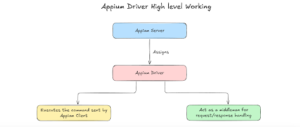
Appium Driver is one of the core components of the Appium architecture. It performs the two major actions of executing the command sent by the Appium Client and acts as a middleman for handling the request and response.
The following section briefly explains the creation of an Appium Session and the working of the Appium Driver.
Appium Session Initialisation
The Appium Server initialises the Appium session using the Capabilities sent by the Appium Client. The required Appium Driver is assigned to the Appium session as per the platformName capability.
Executing the commands sent by Appium Client
The Appium Driver uses the W3C protocol to parse commands sent by the Appium client. The Appium Driver interprets these commands and uses the platform-specific native automation framework to execute them and interact with the Real Devices/ Emulators or Simulators. For example, clicking a button. Swiping Up/down the screen, entering text in the field, etc.
Acting as a middleman for handling requests and responses
The commands sent by Appium Client are sent to the Driver in the form of API requests.
After the interaction is performed on the real devices or emulators/simulators, the API response received after execution is sent back to the Appium Driver.
The Appium Driver then forwards it back to the Server, which sends it to the Appium Client, and finally, the test status is displayed, stating whether the test passed or failed.
Useful Commands for Appium Drivers
Let’s learn about the different useful commands that could be handy while working with Appium Drivers.
Commands for listing the installed and available drivers
The following command will print all the installed and available drivers. The “available” drivers will include all those drivers that are officially recognised by Appium; however, as learned in the earlier section, the other drivers that are not maintained and provided by Appium can also be installed.
appium driver list
The following command will provide a list of all the installed drivers on the machine.
appium driver list --installed
Command for checking driver updates
The following command will output all the drivers that have an update available.
appium driver list --updates
Command for Updating the Appium Driver
To update a particular driver, the following command should be executed from the terminal.
appium driver update <driver_name>
Example to update xcuitest Driver, the following command can be run
appium driver update xcuitest
At some point, there might be a case where we are required to install an Appium Driver by updating a major version boundary, this can be done by using the –unsafe argument in the command, as shown below:
appium driver update <driver_name> --unsafe
The below example script shows using –unsafe with xcuitest Driver
appium driver update xcuitest --unsafe
Command to run script included in the Appium driver package
The authors of the Appium Drivers can include runnable scripts in the Appium Driver package to assist with setup or perform other tasks. These scripts can be run using the following command from the terminal
appium driver run <driver_name> <script_name>
For example, to run the reset script in the UiAutomator2 driver, the following command can be used
appium driver run uiautomator2 reset
Command for Uninstalling the Appium Driver
To uninstall the Appium Driver, the following command should be executed from the terminal
appium driver uninstall <driver-name>
Example to uninstall xcuitest Driver, the following command can be run
appium driver uninstall xcuitest
Command to run the Appium Doctor check
The Appium doctor checks can help us to know if the setup for a particular driver/platform is correctly configured. It also provides us with the feedback to take the necessary action before we move towards writing the mobile automation tests.
We need to execute the following command using the terminal to check the Appium configuration for the respective drivers
appium driver doctor <driver_name>
For example, to check the configuration of xcuitest Driver, the following command can be run.
appium driver doctor xcuitest
It is suggested to fix all the mandatory configuration errors and then proceed with the Automation testing of the mobile applications.
Appium Drivers and Cloud platforms
It can be noted how tedious it is to start working with Appium in the local environment, especially the installation and configuration part, where we need to carefully install every component of the Appium ecosystem to start working with it.
We need to install Appium, the required Appium Driver, and start the server with the specific Appium Driver in order to run the test scripts. This all puts an additional burden on the testing team to keep a check on all the configuration steps to seamlessly work with Appium in the local environment.
Automation clouds such as TestMu AI (formerly LambdaTest) ease the work for testers by providing an on-demand,ready-to-use Appium Environment. The testers don’t have to worry about installing Appium, Appium Drivers, starting the Server, starting the emulators, simulators, real devices, etc.
TestMu AI provides a fully functional, ready-to-use Appium Environment with Real Devices as well as Emulators and Simulators, where the tester can readily plug and play the test on the required device, hassle-free.
Final Words
Appium Drivers are core components of the Appium ecosystem and act as a middleman to send the request to the device,d receive a response and send it back to the Appium Client.
There are multiple drivers that are supported by Appium, each supporting its own platform. The UiAutomator2 driver is used for automating Android mobile applications, whereas the XCUITest platform is used for automating iOS mobile applications.
While working on the local environment, we should make sure to install the correct Appium Driver for the respective platform on which the application is developed. On the other hand, while working on the cloud platforms, we don’t have to worry about Appium and its related driver installations, as everything is provided on demand.
In my experience, cloud platforms offer a seamless experience, save time for infrastructure setup and configuration and allow testing of mobile applications hassle-free.
Enjoyed this article? Add People Development Magazine as a preferred source on Google:
